Google OAuth
Set up Google authentication for your Conduit application.
Prerequisites
- Google Cloud Console account
- Conduit with Authentication module running
Step 1: Create Google Project
- Go to Google Cloud Console
- Create a new project or select existing
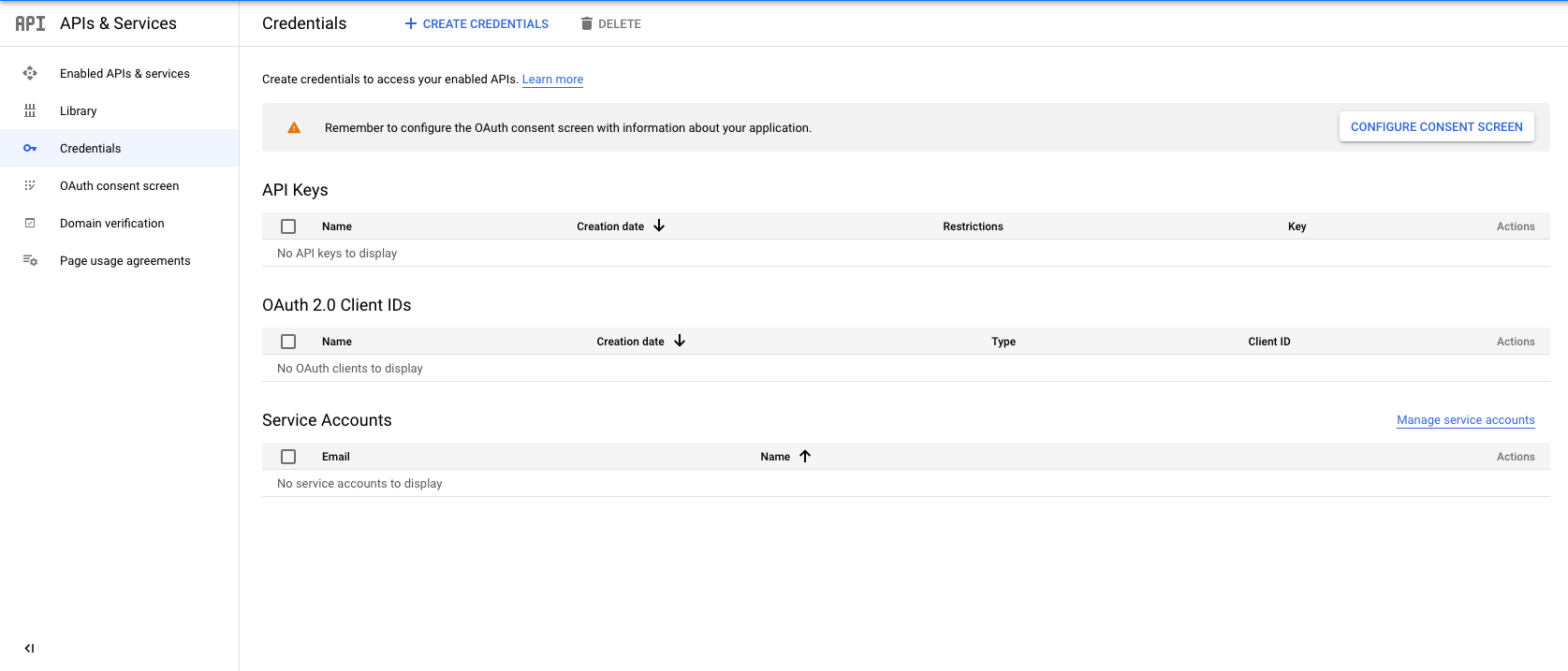
- Navigate to APIs & Services > Credentials
Step 2: Create OAuth Credentials
- Click Create Credentials > OAuth Client ID
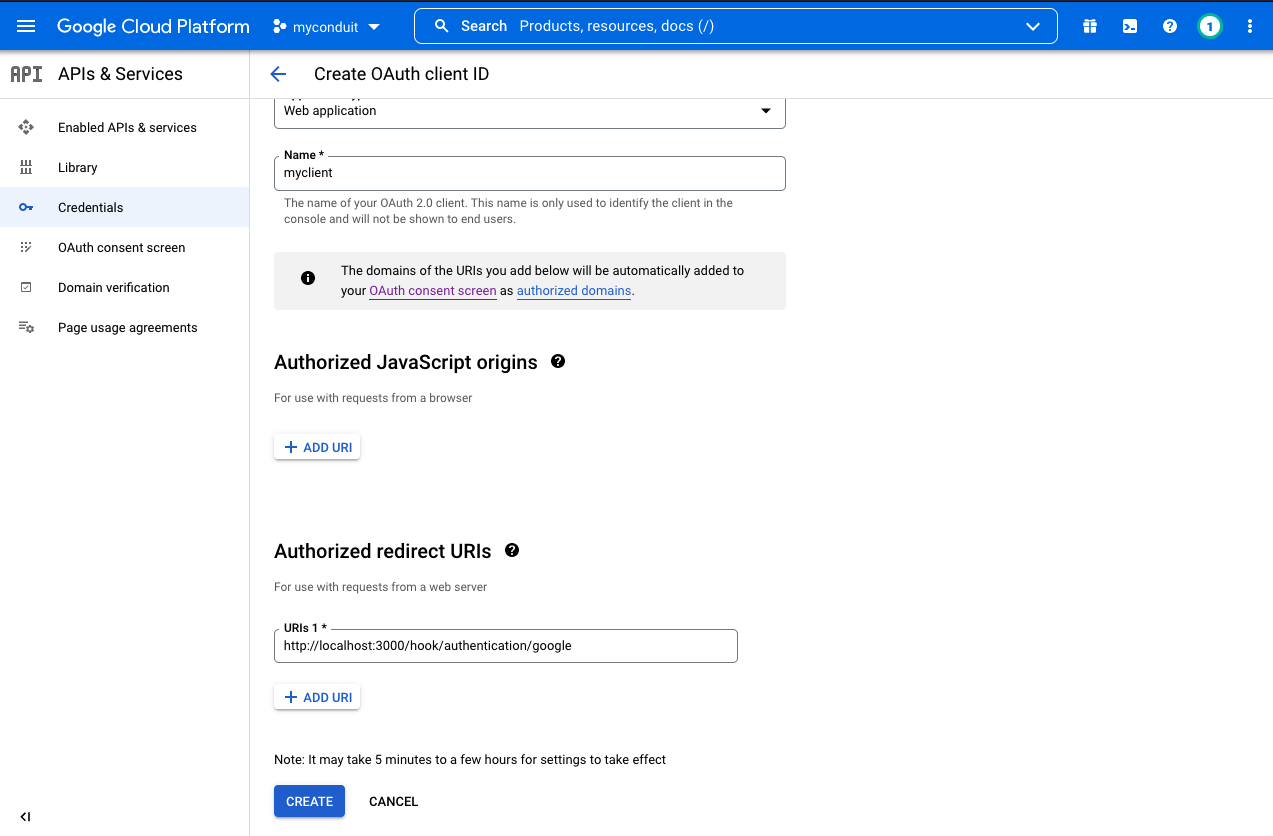
- Select Web application as application type
- Add authorized redirect URI:
http://localhost:3000/hook/authentication/google
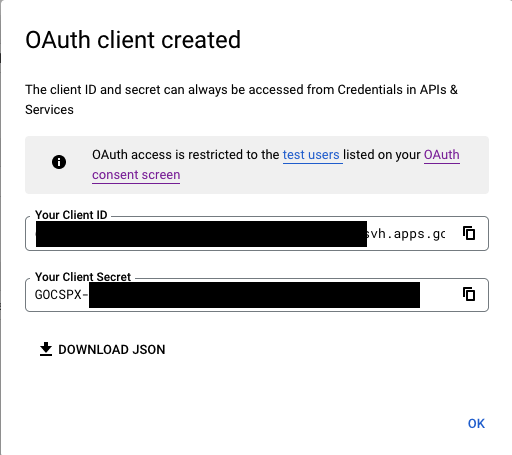
- Save your Client ID and Client Secret
Step 3: Configure Conduit
- Open Admin Panel > Authentication > Settings
- Enable Google provider
- Enter your Client ID and Client Secret
- Save configuration
Step 4: Test Authentication
Get Auth URL
curl -X GET 'http://localhost:3000/authentication/init/google'
Response:
{
  "result": "https://accounts.google.com/o/oauth2/v2/auth?client_id=..."
}
Complete Flow
- Navigate to the returned URL in browser
- Sign in with Google account
- Authorize the application
- Conduit handles the callback and returns tokens
Production Configuration
For production, update the redirect URI:
https://yourdomain.com/hook/authentication/google
Scopes Requested
email- User's email addressprofile- User's name and profile picture